MABS BrightStarCare Mobile App Login: What the Page Really Is
Searches for mabs bright star lead to one real page: mabs.brightstarcare.com, the mobile login for BrightStar Care’s ABS staff system. It is a plain web page that asks for an ABS user name and password — not an app you download from a store — and this guide shows exactly what is, and what is not, behind it.
BrightStar Care itself is a real US home-care franchise, and its caregivers work from phones in clients’ homes, so a mobile staff login makes sense. What does not exist is the polished “MABS app” described in blog guides: there is no store listing for it, no public sign-up, and no feature list visible anywhere before the login screen.
Below, you will find what the real page shows today, the login steps that can honestly be given, what the app-store checks found, which popular claims fail verification, who can actually get an account, and what to do when the login will not work.
Profile Biographie Table
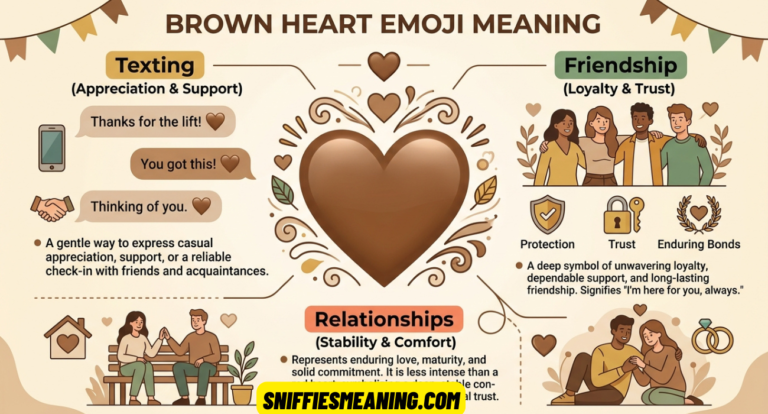
The competitor’s version of this table prints an app-store product profile. Ours prints what the live checks actually returned, field by field:
| Field | What the checks found |
|---|---|
| System name | ABS — the staff system the login belongs to; the mobile page’s own title is “Mobile Log in” |
| What “MABS” is | The mobile web version of the ABS login — “Mobile ABS” in BrightStar Care’s own job-posting wording; a web page, not a store app |
| Official login URL | https://mabs.brightstarcare.com (desktop version: https://abs.brightstarcare.com) |
| Who it is for | BrightStar Care staff — caregivers, nurses and agency office teams — who hold an ABS account |
| Account issued by | Your employing BrightStar Care agency; the login page has no sign-up or register option |
| On the public page | The BrightStar Care logo, the line “Use an ABS account to log in.”, a User Name field, a Password field, and Forgot User Name / Forgot Password links — nothing else is public |
| App Store / Google Play | No official BrightStar Care staff or MABS app found in either store (checked 14 November 2026) |
| The company | BrightStar Care — a US home-care and medical-staffing franchise founded in 2002 by Shelly Sun |
Introduction to MABS BrightStarCare Mobile App
Behind the short name sits a big employer. BrightStar Care is a US home-care and medical-staffing franchise founded in 2002 by Shelly Sun in Illinois, franchising since 2005, with more than 400 locations in recent franchise counts. Its local agencies send caregivers and nurses into clients’ homes, and the paperwork of that work — schedules, clock-ins, care notes — runs through the company’s staff system, ABS.
“MABS” is simply the mobile doorway into that system: open the address in a phone browser and you get a small login page sized for a phone screen. BrightStar Care’s own franchise job postings use the same wording, describing “Mobile ABS” as the proprietary system where staff do mobile time tracking and care notes and reach training resources. That employer-side description is the most authoritative public account of what the system is for — and it is notably plainer than the app-store-style profiles written about it elsewhere.
What the Real MABS Login Page Actually Shows
This page was opened and read directly on 14 November 2026, and everything on it fits on one small screen. The page title is “Mobile Log in”. At the top sits the BrightStar Care logo — served, tellingly, from the company’s own authentication host, authentication.brightstarcare.com. Under it, one line of instruction: “Use an ABS account to log in.” Then there are exactly two fields, labelled User Name and Password, and under them a single recovery line: “Forgot User Name or Password?”, with each half linking to a recovery route.
That is the entire public product. There is no sign-up button, no “download our app” banner, no feature tour, no support email address and no compliance badge. Anything you have read about what happens after this screen — dashboards, menus, buttons — was written by someone looking at the same two fields you are, because the rest of the system is only visible to signed-in staff. This guide therefore separates the two things clearly: what the page itself proves, and what is only generally known about ABS from the employer’s side.
How to Access MABS BrightStarCare com Mobile App Login
Access is deliberately simple: a browser, the correct address, and an account your employer created for you. The four steps below are everything the public record supports. Any guide that gives you more detail than this — exact menu names, button colours, version numbers — is inventing it, because none of that is visible from outside the login.
Step 1: Visit the Official MABS Login Page
Type https://mabs.brightstarcare.com into your phone’s browser yourself, or use a bookmark your agency gave you. Typing it matters: the address is short, look-alike pages are a known trick for harvesting staff passwords across every industry, and a link that arrives unexpectedly by text or email deserves suspicion. On the real page you should see the title “Mobile Log in”, the BrightStar Care logo and the line “Use an ABS account to log in.” If the page in front of you asks for anything else first — a payment, a download, personal details beyond a user name and password — close it.
Step 2: Enter Your Credentials
Enter the user name and password exactly as your agency issued them. Nothing on the public page states what format the user name takes, and this guide will not guess at one: formats are set by the employer, and the version printed in blog guides (“your employee ID or email”) is their guess, not BrightStar Care’s published rule. If you have never been issued credentials, the login page cannot help you and no website can create them for you — accounts start with your agency office, as the section on who can get a login explains below.
Step 3: Multi-Factor Authentication (If Enabled)
The public login page shows no multi-factor step at all — just the two fields and the recovery links. Whether an extra verification appears after sign-in for some accounts is not publicly documented, and BrightStar Care publishes no staff guide to it. So treat the competitor’s version of this step (“enter the code sent to your registered mobile number or email”) as unverified: it describes how such systems often work, not what this one provably does. One rule holds whatever the setup: a genuine sign-in code is only ever typed by you, on the page, during a login you started — never read out to anyone who contacts you first.
Step 4: Navigating the Dashboard
The dashboard sits behind the login and is not publicly visible, so no honest guide can walk you through its menus — including this one. What can be said comes from the employer’s own descriptions: BrightStar Care franchise job postings describe Mobile ABS as the system staff use for mobile time tracking and care notes, for managing their work schedule from a phone, and for reaching training resources (“Clinical Pathways” for nurses, “In the Know” for aides). That is the documented shape of the thing. For anything more specific — where a particular button lives, how your agency wants notes written — your supervisor and your agency’s own training are the real manual, because the agencies, not the blogs, can see the screen.
Is There a MABS App? What the App Stores Actually Show
Because so many guides call MABS an app, both stores were searched directly on 14 November 2026. In Apple’s App Store, a search for the company’s name returns no staff app published by BrightStar Care or its parent: the nearest results are other people’s products — an event app called “BrightStar Care Illuminate” from The Diamond Group, LLC, a banking app from the unrelated BrightStar Credit Union, and an Australian nursing company’s app. Google Play tells the same story: a “BrightStar Care Conference” event app from The Diamond Group LLC, the credit union’s apps, and no ABS or MABS login app from the franchisor at all.
The conclusion is straightforward: there is nothing official to install. A name being searched as an app does not make it one — the aavot app checks on this site ended the same way, with a website wearing an app’s name. So if a page offers you a “MABS APK”, an installer file, or a store link that leads anywhere other than the two official stores, treat it as unsafe: the genuine mobile route is the web page, reached in a browser, at the address above.
Key Features of the MABS BrightStarCare Mobile App
The competitor lists four feature areas for the “app”. Each is plausible for a staff scheduling system, and the employer’s own job postings support the first two in general terms — but none of them can be verified from the public page, because features live behind the login. Read the four sections below as “what ABS is for”, in the employer’s words where they exist, not as a tested feature list.
Scheduling & Timekeeping
This is the best-documented of the four. BrightStar Care’s franchise job postings say plainly that caregivers do “mobile time tracking” and “easily manage your work schedule from a phone” inside Mobile ABS. Clocking in and out at a client’s home, and checking upcoming visits on the same screen, is exactly the job a mobile login exists for — so while the precise buttons stay behind the login, the purpose itself is confirmed by the people who hire for it.
Visit Documentation
The same job postings pair time tracking with “care notes”, which is the documentation half of the work: recording what was done during a visit while it is still fresh. Records of this kind are also what visit-verification rules check — a signed-in note with a time and a place is the evidence that a scheduled visit happened. The details of the forms are your agency’s business and are taught in its training; no public page shows them, and this article does not invent them.
Real-Time Notifications
This claim stays unverified. No employer source found in these checks promises push notifications from Mobile ABS, and a plain web page — which is what MABS is — cannot push alerts to your phone the way an installed app can. Schedule changes obviously do reach caregivers somehow, but the route (inside the system, by email, or by a call from the office) is set agency by agency. A guide that guarantees you instant push alerts from MABS is describing the app it wishes existed.
HIPAA-Compliant Security
Two corrections belong here. First, there is no official “HIPAA certification” that software can hold — compliance is a set of practices, not a badge — and the public login page makes no compliance claim of any kind; the competitor’s table entry (“HIPAA-Compliant, Encrypted Access”) and its support email address appear nowhere on the real page or in any official source found. Second, what is true: BrightStar Care, as a home-health provider, handles client information under the US health-privacy law HIPAA, so the notes staff write in ABS are exactly the kind of record those rules protect. Your part of that protection is the login hygiene covered in the Best Practices sections below.
Troubleshooting Common Login Issues
Most login failures are small and local: a mistyped password, a stale browser, a weak connection, or an account problem only your agency can see. Work through the three situations below in order before assuming anything is seriously wrong — and remember that the only genuine support route for an ABS account is the agency that issued it. Any website offering to fix your MABS login for a fee, or by installing remote-access software on your phone, is a scam aimed at care workers.
Forgot Password
The recovery links are real: “Forgot User Name” and “Forgot Password” sit directly under the password field on the genuine page. Use the one you need and follow the page’s own steps — that flow is the employer’s, and it is the only reset route this guide can honestly describe. If the reset does not come through, or the account itself seems locked or missing, stop retrying and contact your agency office or supervisor: they manage the account, and they are the people who can restore it.
App Not Loading
There is no app to fail loading — what fails is a web page, and the fixes are browser fixes. Check the address is spelled exactly mabs.brightstarcare.com; try switching between Wi-Fi and mobile data; clear the browser’s cache or open the page in a private tab; and if the phone keeps failing, try the desktop version of the same login (below) on a computer. If the page itself is down, it is down for every caregiver at once, and your office will hear about it first — call them rather than searching for a workaround.
App Crashes or Freezes
A browser page does not crash the way an installed app does; if the login freezes or spins, reload it, close and reopen the browser, update the browser if it is old, and restart the phone if the problem follows you between pages. Note, too, that no minimum system requirements for MABS are published anywhere official — any blog listing required OS versions or device specs for it has invented them, because the only real requirement is a browser that can open the page.
Five Checks Before You Type Your Password
Staff logins are valuable, and a convincing copy of a two-field page takes minutes to build. Before entering your credentials on any page that claims to be this login, run these five checks:
- Read the domain backwards. The address must end in brightstarcare.com, with only mabs. or abs. in front of it. Extra words, hyphens or a different ending mean a different site.
- Match the page you know. Title “Mobile Log in”, the BrightStar Care logo, and the line “Use an ABS account to log in.” — a page that looks richer than that is not this page.
- Count the fields. The genuine page asks for a user name and a password, and offers the two Forgot links. If it asks for bank details, a card, or an ID number, leave.
- Arrive by your own route. Type the address or use your agency’s bookmark. Never sign in from an unexpected text or email link, however urgent it sounds.
- Refuse paid “help”. Nobody legitimate charges to repair a staff login, and nobody needs remote access to your phone. Access problems go to your agency office.
Confusing and copied names are exactly how look-alike pages spread — the same check-first habit this site applied to the game mods lyncconf name, which also turned out to be different from what the guides around it claimed.
Best Practices for Using the Mobile App
Three habits cover most of the risk in a shared staff system: leave sessions closed, keep the software current, and keep credentials to yourself. The competitor’s three practice headings follow, with each one corrected to fit a web login rather than an installed app.
Always Log Out After Use
Sound advice, and it matters more on a web page than in an app: a browser session can stay signed in on a shared or family phone long after you have put it down, in a system holding client information. Log out when you finish — especially after clocking out at a client’s home on any device that is not exclusively yours.
Update Regularly
There is no MABS app to update, so “keep the app updated” translates into two real tasks: keep your phone’s operating system and your browser up to date, since the login page depends on both, and be suspicious of anything that offers you a MABS update or a newer version to download — no such thing exists, and the offer itself is the warning sign.
Don’t Share Credentials
Your ABS login is tied to your name, your visits and your clients’ records, so lending it breaks the chain that makes those records trustworthy — and it can put you answerable for notes and clock-ins you never made. If a colleague is locked out, the fix is their own recovery link or the agency office, never your password. The same rule runs the other way: never sign in with someone else’s credentials, even to help out on a busy day.
Importance of the App in Home Healthcare
Strip away the app mythology and the real importance is easy to see. Home care happens away from any office — in clients’ kitchens and bedrooms, on their schedules — so the record of the work has to be made where the work happens. A phone-sized login for time tracking and care notes means the visit is documented when it occurs, the office can see the day taking shape without phone tag, and the client gets a carer whose attention is on them rather than on end-of-day paperwork. That is why a system like ABS, reached through a page like MABS, matters to agencies — not because it is an impressive piece of software, but because it is the paperwork, moved to the point of care.
Compatibility and Supported Devices
The competitor’s table answers this with app-store logic. Rebuilt from the checks, the honest version is about browsers:
| Device Type | Supported? |
|---|---|
| iPhone/iPad | ✅ (in the browser — there is no App Store version) |
| Android | ✅ (in the browser — there is no Google Play version) |
| Windows PC | ✅ (in the browser — use the desktop ABS page) |
| Mac | ✅ (in the browser — use the desktop ABS page) |
Every “yes” in that table is a browser yes. If a device can open a modern web page, it can open this login; if it cannot, no app download will save it, because there is no app.
Alternatives and Access Points
There is exactly one alternative access point, and it is official: the desktop version of the same login at https://abs.brightstarcare.com, which shows the same form under the title “ABS Log in” — same ABS account, bigger screen. Beyond that, the honest alternatives are human ones: your agency office, which can confirm your schedule, fix account problems and tell you if the system is down. There is no second website, no backup portal and no phone app; any page presenting itself as one is borrowing the name.
Who Can Get a MABS Login — and Who Cannot
The login page has no sign-up, and that is by design. ABS accounts belong to BrightStar Care staff: they are created by the employing agency, typically as part of starting the job, and they end with the job. Three groups who often search for this page should know where they stand. Clients and their families do not use MABS at all — it is a staff system, and families reach their agency through the office and its public contact routes. Job applicants get no login before employment, whatever a blog’s “create account” walkthrough claims — the competitor ecosystem contains several, and every one of them describes a button that does not exist. And former staff should expect access to lapse: if you have left an agency and the page still recognises you, tell the office rather than using it.
Conclusion
The MABS BrightStarCare login is a small, real thing wearing a large, invented description. It is the mobile web page for BrightStar Care’s ABS staff system — two fields, a logo and a recovery link — used by caregivers and nurses whose agencies issue the accounts. It is not an app in either store, it takes no sign-ups, and nothing about its dashboard, features or security badges can be verified from outside the login; the guides that describe all of that in detail are describing their own template.
Used properly, it needs no embellishment: type the real address, sign in with the account your agency gave you, log out afterwards, and take every problem back to the office that employs you. Those signed-in visit records matter beyond the working day, too: they feed electronic visit verification, the system that confirms Medicaid-funded home-care visits actually happened as scheduled.
FAQs About MABS BrightStarCare com Mobile App Login
What is the MABS BrightStarCare mobile app used for?
It is the mobile web login for BrightStar Care’s ABS staff system, at mabs.brightstarcare.com.
Staff with an ABS account use it for their schedules, time tracking and care notes.
How do I reset my password?
Use the “Forgot Password” link under the password field on the login page and follow its steps.
If the reset fails, your agency office manages the account and can help you restore access.
Can I use the app on iPhone and Android?
Yes — through the browser on both, at the same address; there is no separate app to install.
No official BrightStar Care staff app appears in the App Store or Google Play.
What if my app won’t open?
Check the connection and the exact address, clear the browser cache, or try the desktop ABS page.
If it still fails, tell your agency office — accounts and outages are handled there, not online.
Is the app HIPAA-compliant?
No compliance claim is printed on the public login page, so that cannot be verified from outside.
What is certain is that staff must handle client information under HIPAA’s privacy rules.
Do I need Wi-Fi to use the app?
No — any working internet connection, Wi-Fi or mobile data, reaches the page.
You do need to be online to sign in and to save time and notes.