SFM Compile Meaning: What It Is, How It Works, and More
Creating custom models for Source Filmmaker can be exciting, especially when you want to use unique characters, props, or objects in your animations. However, importing a regular 3D model into SFM is not always straightforward. The software needs models in a format that its engine can understand.
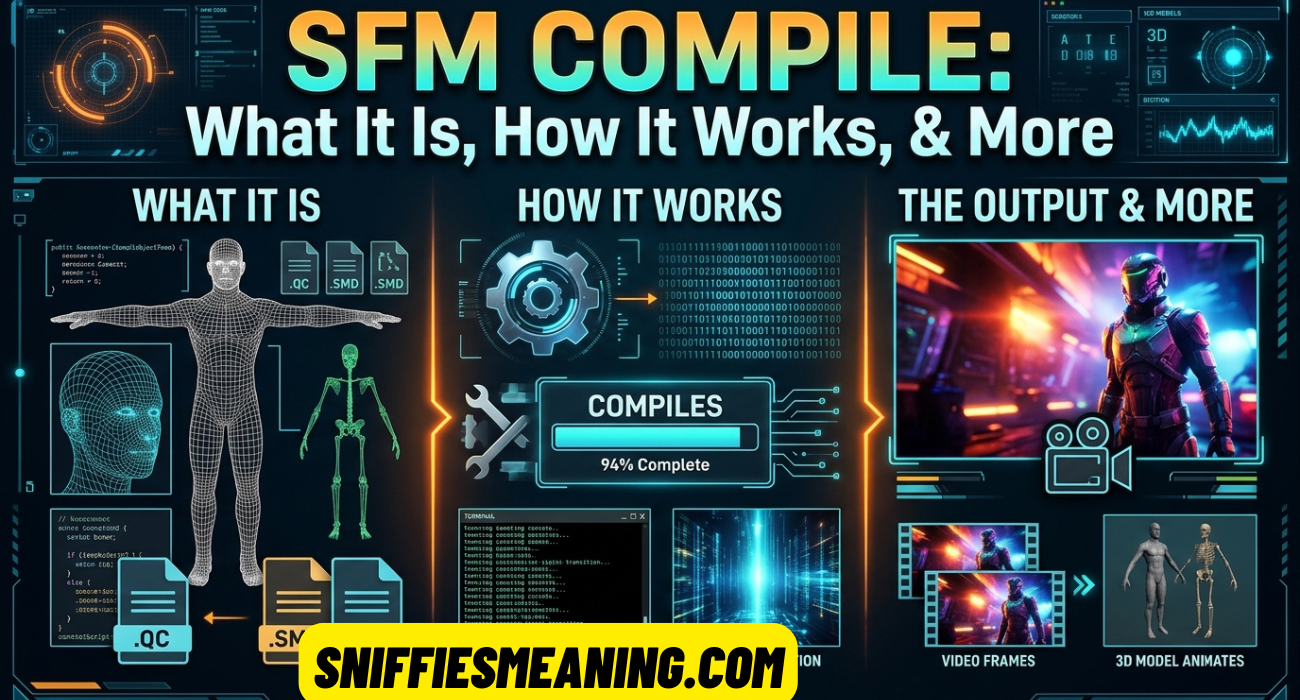
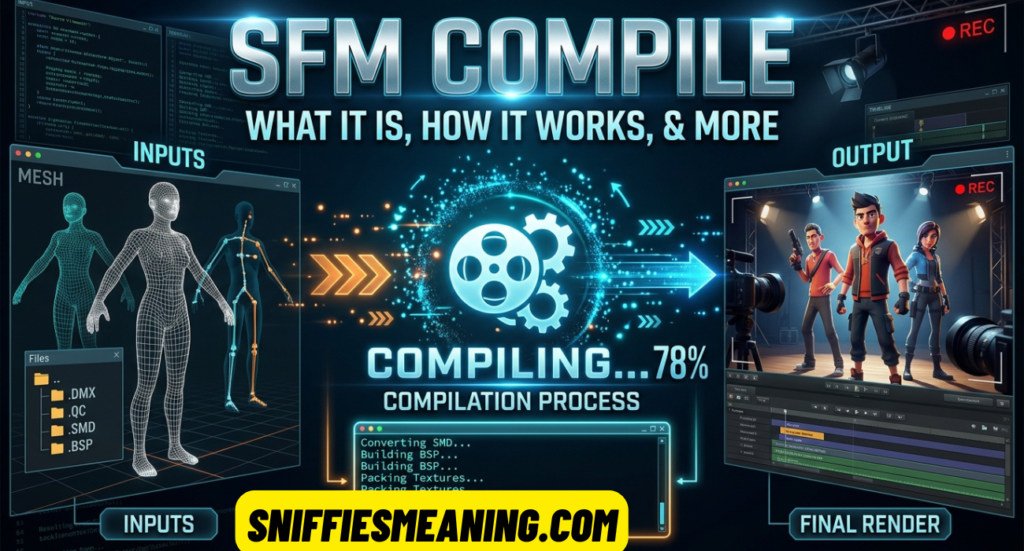
This is where SFM Compile becomes important. It refers to the process of converting model files, textures, skeletons, and other assets into a format that Source Filmmaker can recognize and load.
Whether you are a beginner or an experienced 3D artist, understanding this process can save you time and prevent common problems. This guide explains the required software, QC files, compilation steps, common errors, and ways to use your finished models in SFM.
What Does “SFM Compile” Actually Mean?
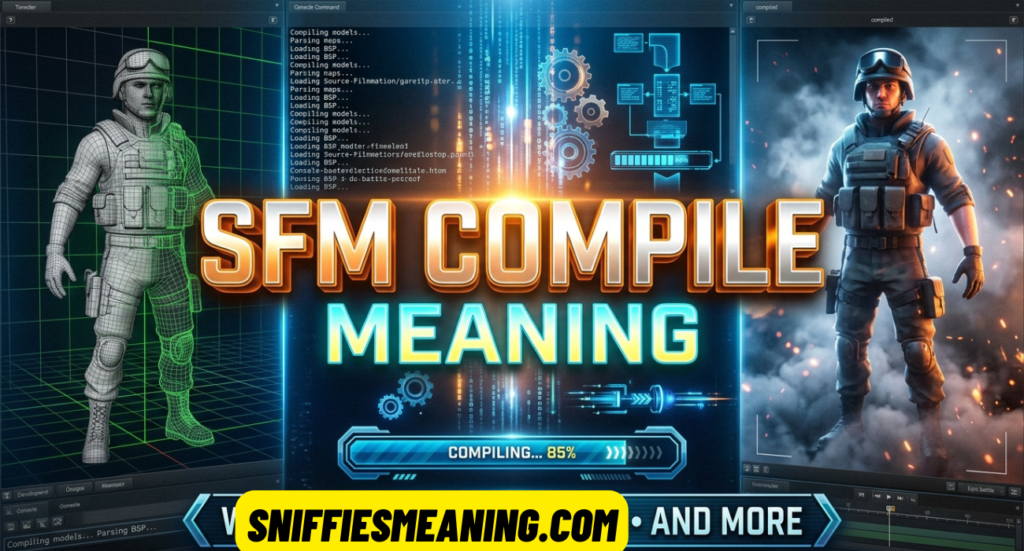
SFM Compile refers to converting 3D model source files into compiled model files that work with Source Filmmaker. It is an important part of preparing custom assets for the Source engine.
Source Filmmaker does not directly load every file created by popular 3D programs. For example, a model saved as a Blender .blend, Autodesk .fbx, or Wavefront .obj file usually needs to go through an export and compilation process before SFM can use it.
The process generally involves exporting geometry, preparing materials, creating a QC script, and running the Source model compiler.
The compiler commonly used for this task is called StudioMDL. It converts the prepared model data into Source-compatible files, including the main .mdl file and its supporting files.
Read Also : Mashable Connections Hint Today: Complete Guide 2026
Here is a simple comparison:
| File or format | Main purpose |
|---|---|
.blend | Editable Blender project |
.fbx | 3D model exchange format |
.obj | 3D geometry exchange format |
.smd | Source model or animation data |
.dmx | Source-compatible model and animation data |
.qc | Instructions for the model compiler |
.mdl | Compiled Source model |
.vvd | Model vertex data |
.vtx | Model optimization and mesh data |
.vmt | Material definition |
.vtf | Texture data |
A successful compile creates the model files that SFM needs. However, compilation alone does not guarantee that the model will look or behave correctly. Textures, bones, animations, and folder paths must also be configured properly.
In simple terms: SFM Compile turns prepared 3D assets into a model that Source Filmmaker can load and use in a scene.
How Model Compiling Fits Into the SFM Pipeline
Model compiling is one stage in a larger 3D production workflow. It connects modeling software with Source Filmmaker.
Understanding the complete pipeline makes it easier to identify where something goes wrong.
The typical SFM model workflow
3D ModelingCreate the mesh, UVs, materials, and skeleton.
Export Model FilesExport reference geometry and animations as SMD or DMX.
Prepare QC and MaterialsDefine model settings, sequences, and material paths.
Compile with StudioMDLGenerate the Source-compatible model files.
Test in HLMV and SFMCheck the model, materials, skeleton, and animations.
Each stage has a specific purpose. Modeling creates the original asset, exporting prepares it for the Source toolchain, and compilation builds the final model.
If the original mesh has broken geometry or incorrect bone weights, compiling it will not automatically repair those problems.
The same applies to materials. A model may compile successfully but still display missing textures if its VMT or VTF files are not in the correct locations.
The Software You Actually Need
You do not need dozens of applications to compile a model for Source Filmmaker. A small collection of compatible tools is enough for most basic projects.
The exact software depends on whether you are creating a new model, converting an existing asset, or working with a downloaded character.
Source Filmmaker (Free)
Source Filmmaker is the main application where you use your compiled models.
It provides tools for animation, lighting, camera positioning, scene creation, and rendering. It also includes Source engine components used by the model compilation workflow.
You can download SFM through Steam. Its installation directory normally contains folders such as game, bin, and usermod.
The bin folder is particularly important because it contains engine utilities, including model-related tools.
3D Modeling Software
A modeling application helps you create or modify the original 3D asset before compiling it.
Popular options include:
- Blender: A free application for modeling, UV mapping, rigging, and animation.
- Autodesk Maya: A professional tool used for character modeling, rigging, and animation.
- 3ds Max: Another option for creating and preparing 3D assets.
Blender is a practical starting point for beginners because it supports the complete modeling workflow and can export Source-compatible files through additional tools.
For Blender users, the Blender Source Tools add-on helps export model and animation data in formats such as SMD and DMX.
Compiling Tools
A model compiler converts the prepared files into a format that Source Filmmaker can load.
The main options include:
Crowbar: A graphical utility that makes compiling and decompiling Source models easier. It allows you to select a QC file, configure the target game, choose the compiler, and review the output log.
StudioMDL: The actual Source model compiler. It processes the QC script and associated model files to generate the compiled model.
VTFEdit: A utility commonly used to create or convert Valve Texture Format files. It helps prepare textures for Source materials.
These tools perform different jobs. Crowbar provides a convenient interface, StudioMDL performs the actual compilation, and VTFEdit helps prepare texture assets.
Importantly, you should use a compiler compatible with the target Source game. Different Source branches can produce different model formats and may support different features. A compiler intended for another Source game is not automatically interchangeable with the SFM toolchain.
Understanding the QC File
A QC file is one of the most important parts of the SFM compilation process. It is a plain-text script that tells StudioMDL how to assemble a model.
Think of it as an instruction sheet. It connects your exported mesh files, material locations, animations, and other settings so the compiler knows what to build.
A QC file normally uses the .qc extension. You can create or edit one using Notepad, Notepad++, or another text editor.
For example, a QC file can tell the compiler:
- Which model file to create.
- Where to find the reference mesh.
- Which material directory to use.
- Which animation sequences to include.
- Whether to create a physics collision model.
- Which surface properties to assign.
A small mistake in a QC file can prevent the model from compiling. Incorrect filenames, missing files, and invalid commands are common causes of failure.
Key QC Commands Explained
The following table explains some important QC commands used in Source model compilation.
| QC command | Purpose |
|---|---|
$modelname | Defines the output model name and path. |
$body | Defines the model’s reference geometry. |
$bodygroup | Creates selectable model bodygroups. |
$cdmaterials | Specifies where Source searches for materials. |
$surfaceprop | Sets the physical surface property. |
$sequence | Defines an animation sequence. |
$collisionmodel | Defines collision geometry for physics. |
$mass | Sets the collision model’s mass. |
$staticprop | Marks a model as a static prop where supported. |
$include | Includes another QC script. |
You do not need every command in every project. A simple character, animated object, and static prop can require different configurations.
For instance, a character usually needs a skeleton and animation sequences. A simple decorative object may not need a complex rig.
A Simple Annotated Example
Here is a basic example of a QC file for an animated model:
$modelname "custom/my_character.mdl"

$body "body" "my_character_reference.smd"

$cdmaterials "models/custom/my_character"

$surfaceprop "flesh"

$sequence "idle" "my_character_idle.smd"
{
    fps 30
    loop
}
Each line has a specific job.
$modelname determines the compiled model’s location and filename. In this example, the model will be named my_character.mdl inside the models/custom directory.
$body identifies the reference mesh that contains the model geometry and skeleton.
$cdmaterials tells the Source engine where to search for the model’s material files.
$surfaceprop assigns a surface property. Here, the example uses flesh.
$sequence defines an animation named idle. The animation file contains the movement data, while fps 30 sets its playback rate and loop allows it to repeat.
The filenames in this example are illustrative. Your QC file must use the actual filenames and paths from your project.
One important detail: this is a starting example, not a universal QC template. More advanced characters may require flex controllers, additional sequences, bodygroups, attachments, and other settings. Static props also use a different setup.
Step-by-Step: How to Compile a Model for SFM
Compiling your first model may seem complicated, but the process becomes easier when you complete each stage separately.
The following workflow is suitable for someone starting with a model in Blender and preparing it for Source Filmmaker.
Step 1: Prepare Your 3D Model
Start by opening your model in Blender or another compatible 3D application.
Check the geometry before exporting. Remove unnecessary objects, fix broken faces, and make sure the model has usable UV coordinates.
If you are creating a character, inspect the armature and confirm that the mesh is properly connected to its bones.
Pay attention to these details:
- Remove duplicate or unnecessary geometry.
- Check the model’s scale and orientation.
- Apply appropriate object transformations.
- Confirm that UV mapping works correctly.
- Give materials clear and consistent names.
- Check that the model’s normals are facing the correct direction.
Do not rush this stage. A poorly prepared model can create problems that are difficult to diagnose later.
Step 2: Export the Model as SMD or DMX
Source Filmmaker workflows commonly use SMD and DMX files for model geometry and animation data.
If you use Blender, install the Blender Source Tools add-on that supports Source model exporting.
After installing the add-on, select your model and prepare the export settings.
Export the reference mesh first. Give it a clear name, such as:
my_character_reference.smd
If your character has animations, export each animation separately. For example:
my_character_idle.smd
my_character_walk.smd
my_character_run.smd
Keep the filenames consistent because your QC script must reference the exact files.
Remember that the reference mesh and animation files serve different purposes. The reference file provides the model’s geometry and skeleton, while animation files provide movement data.
Step 3: Prepare Your Textures and Materials
Textures help your model display colors, surface details, and other visual information.
Source uses two important material formats:
- VTF (Valve Texture Format): Stores the actual texture image data.
- VMT (Valve Material Type): Defines the material and tells the engine how to use its textures.
Prepare your texture images and convert them into VTF files using a compatible tool.
Next, create the corresponding VMT files. A simple material definition might look like this:
"VertexLitGeneric"
{
    "$basetexture" "models/custom/my_character/body"
}
In this example, the engine searches for a texture named body.vtf under the corresponding material directory.
The VMT filename should match the material name used by the exported model.
A typical folder structure looks like this:
usermod/
│
├── models/
│   └── custom/
│       └── my_character.mdl
│
└── materials/
    └── models/
        └── custom/
            └── my_character/
                ├── body.vmt
                └── body.vtf
Your actual structure must match the paths specified in the QC file and the material references inside the model.
Step 4: Create the QC File
Open a text editor and create a new file with the .qc extension.
For example:
my_character.qc
Add the appropriate model commands and reference your exported SMD or DMX files.
Before continuing, verify that every filename matches the exported asset. Check the material directory and output model path as well.
A useful habit is to keep the QC file in the same project folder as your exported model files. This makes relative file paths easier to manage.
Step 5: Open Crowbar
Launch Crowbar and open its Compile tab.
Crowbar provides a graphical interface for running the StudioMDL compiler. It does not replace StudioMDL itself.
Select your QC file using the Browse option.
Then configure the target game and compiler settings. Choose the Source Filmmaker-compatible compiler rather than selecting an unrelated Source game.
Check the output directory carefully. For a simple custom model, you can use a dedicated folder under SFM’s usermod directory.
Step 6: Start the Compilation
Once the settings are ready, click the Compile button.
Crowbar will send the QC instructions and related files to StudioMDL.
The compiler processes the model and generates its compiled files. Watch the log window while the operation runs.
If the process succeeds, check the output folder for the generated model files.
If it fails, do not immediately change several settings. Read the first meaningful error in the log and identify the file or command responsible.
Step 7: Check the Compiled Files
A compiled model usually contains several supporting files.
| Extension | Purpose |
|---|---|
.mdl | Main model definition |
.vvd | Vertex data |
.vtx | Optimized mesh data |
.phy | Physics data, when generated |
Not every model needs every optional companion file. For example, a physics file may be absent when the QC does not request collision data.
Make sure the generated files are in the correct model directory.
Step 8: Test the Model in Half-Life Model Viewer
Before opening the model in a complete SFM scene, inspect it using Half-Life Model Viewer (HLMV), when available.
This lets you check the model without dealing with other scene elements.
Look for:
- Missing textures.
- Incorrect model scale.
- Broken geometry.
- Missing bones.
- Unexpected model orientation.
- Animation problems.
- Incorrect bodygroups or skins.
If something looks wrong, return to the relevant source file, correct it, and compile again.
Step 9: Load the Model in Source Filmmaker
After checking the compiled model, open Source Filmmaker.
Create or open a session. In the Animation Set Editor, right-click and select Create Animation Set for New Model.
Browse for your compiled .mdl file or search for its model path.
Select the model and add it to the scene.
If everything is configured correctly, your custom model should appear in the viewport. You can then position it, create animation sets, adjust controls, and use it in your project.
The official SFM community guidance also recommends placing custom assets in the appropriate usermod folder structure so the application can locate their model and material files.
Common Compile Errors and How to Fix Them
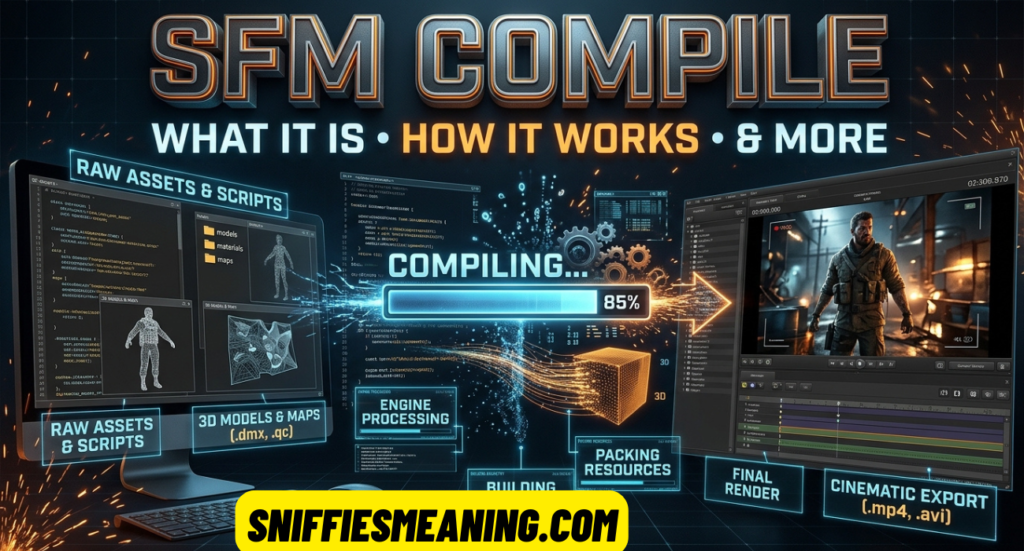
A failed compile does not always mean your entire model is broken. Often, the problem comes from a missing file, an incorrect path, or a small mistake in the QC script.
Here are some common problems and their practical solutions.
| Error or symptom | Possible cause | What to do |
|---|---|---|
| Missing SMD file | Incorrect filename or path | Check the QC reference and file location. |
| Invalid QC command | Typing or syntax mistake | Review the command and its parameters. |
| Model does not appear | Incorrect output directory | Check the compiled model’s location. |
| Purple and black textures | Missing VMT or VTF | Verify material and texture paths. |
| Broken character shape | Incorrect mesh or export settings | Inspect the geometry and export again. |
| Animation does not work | Incorrect sequence or skeleton | Compare animation and reference skeletons. |
| Model is too large | Incorrect scale | Correct the scale before exporting. |
| Compiler cannot run | Incorrect compiler configuration | Select the appropriate StudioMDL executable. |
Missing File Errors
This problem occurs when the QC file references an asset that does not exist in the expected location.
For example, your QC might contain:
$body "body" "character_reference.smd"But the actual file might be named:
character_ref.smd
The compiler cannot find the requested file because the names do not match.
Fix: Check every filename in your QC script. Also verify the relative directory paths.
Read Also : Error Codes FintechAsia – Full Guide to Fixing Common Issues Easily
Purple and Black Checkerboard Textures
The purple-and-black checkerboard is a familiar Source engine missing-texture indicator.
It usually means that SFM cannot find or load the material or texture requested by the model.
Check the following:
- Does the correct VMT file exist?
- Does the VMT reference the correct VTF?
- Does
$cdmaterialspoint to the correct directory? - Does the material name match the model’s material reference?
- Are the files inside a directory that SFM can access?
For example, if your QC uses:
$cdmaterials "models/custom/my_character"The corresponding material files should be available under:
usermod/materials/models/custom/my_character/Correcting the material path often resolves this issue.
Invalid QC Syntax
A QC file must follow the compiler’s expected syntax.
A missing quotation mark, incorrect command parameter, or misplaced brace can cause compilation to fail.
Fix: Review the QC file carefully. Compare its structure with a working example and check the compiler log for the relevant line number.
Model Compiles but Does Not Appear in SFM
Sometimes compilation succeeds, but the model is not visible in the SFM model browser.
This usually indicates an installation or search-path problem rather than a failed compile.
Check whether the .mdl file is inside a folder that SFM reads. Also confirm that the model browser is not filtering out the folder containing your asset.
Restarting SFM can help it recognize newly installed content.
Animation Files Are Missing or Incorrect
A character may compile but fail to play an animation.
This can happen when the sequence references the wrong animation file or when the animation skeleton does not match the reference skeleton.
Fix: Compare the bone names and hierarchy in the reference and animation exports. Confirm that the QC sequence points to the correct animation file.
Also make sure the animation actually contains movement data.
Compiler Aborts Processing
An aborted compilation is a general failure message. It does not always identify the original problem.
Instead of focusing only on the final error, scroll upward through the log.
Look for the first meaningful error message. It may identify a missing file, malformed QC command, or invalid model export.
Correct that problem and run the compiler again.
Best Practices for Clean, Reliable Compiles
A successful compilation is only part of a good SFM workflow. You also need organized files, consistent naming, and properly prepared assets.
Following a few basic habits can prevent repeated errors.
Keep Your Project Files Organized
Create a separate folder for each model instead of placing every file in one directory.
For example:
my_character/
│
├── qc/
│   └── my_character.qc
│
├── models/
│   ├── reference.smd
│   └── physics.smd
│
├── animations/
│   ├── idle.smd
│   └── walk.smd
│
├── textures/
│   ├── body.vtf
│   └── body.vmt
│
└── compiled/
This structure makes it easier to find files when something goes wrong.
Use Consistent File Names
Choose simple filenames that describe their purpose.
For example, use character_idle.smd instead of confusing names such as newfile_final_3.smd.
Avoid unnecessary spaces and special characters in filenames. Use forward slashes in QC paths where possible.
Check Your Model Before Compiling
Inspect the mesh, UVs, normals, and skeleton before exporting.
For character models, check the weight painting around joints such as shoulders, elbows, knees, and wrists.
For props, check the geometry and collision setup if the object needs physics interaction.
Keep Original Source Files
Never rely only on compiled model files.
Keep your Blender projects, exported SMD or DMX files, QC scripts, and texture sources in a separate backup location.
If you need to change the model later, these original files will make the process much easier.
Read the Compiler Log
Do not assume that every warning is harmless.
A compilation may complete while still reporting problems that affect certain features.
Read the log after each compile and investigate errors or warnings that relate to your model.
Where to Get Models, Assets, and Ports
You do not always need to create a model from scratch. There are several ways to find assets for Source Filmmaker.
However, it is important to understand the difference between downloading a ready-to-use SFM model and downloading a model that still needs conversion.
Steam Workshop
The Steam Workshop is a convenient place to find models and other assets created for SFM.
Many Workshop items are already prepared for use in Source Filmmaker. You can subscribe to an item and let Steam manage its installation.
Common Workshop assets include characters, props, environments, accessories, and other scene elements.
However, not every downloaded model is immediately compatible with SFM. Check the item’s description and installation instructions before using it.
Community Model Libraries
Community websites and creator pages may offer downloadable models, textures, animations, and other assets.
Some files come with their original source projects, while others contain only compiled model files.
Before downloading anything, check:
- Whether the model supports Source Filmmaker.
- Whether the download includes textures.
- Whether the model has a compatible skeleton.
- Whether the creator provides installation instructions.
- Whether the license allows your intended use.
Do not assume that a model available online is free to redistribute or use commercially.
Model Ports
A model port is an asset converted from one game, application, or 3D format into another environment.
For example, someone may convert a character from a different game into a Source-compatible model for SFM.
A port may require changes to materials, skeletons, animation sequences, and geometry.
Some ports work almost immediately. Others require additional setup before they function correctly.
Also, a model created for Garry’s Mod, Team Fortress 2, or another Source-based game is not automatically compatible with SFM. Different games can use different model compiler versions, engine features, and material settings.
Creating Your Own Assets
Creating original assets gives you more control over their appearance and functionality.
You can model a character in Blender, create its textures, build an armature, export the required files, and compile the result for SFM.
This approach takes more time, but it is useful when existing models do not match your project.
Always respect the original creator’s permissions when modifying or porting someone else’s work.
Rigging and Animation Basics Once Your Model Is Compiled
Compiling a character model does not automatically make it ready for animation.
A compiled model needs an appropriate skeleton, valid bone weights, and animation data if you want to move it naturally.
Rigging is the process of creating a skeleton and connecting the model’s geometry to its bones.
For example, a basic human character might have bones for the spine, head, arms, hands, legs, and feet.
When the character moves, the bones control the corresponding parts of the mesh.
Understanding Bone Weights
Bone weights determine how much influence each bone has over nearby vertices.
For example, when a character bends an elbow, the upper arm and forearm bones influence the surrounding geometry.
Poor weight painting can cause stretching, collapsing, or unnatural deformations.
Check the important joints before exporting the model.
Preparing Animation Sequences
Animations are generally exported as separate files and referenced in the QC script.
Common examples include:
| Animation | Purpose |
|---|---|
| Idle | Standing or resting |
| Walk | Normal walking |
| Run | Faster movement |
| Jump | Jumping movement |
| Sit | Sitting position |
| Attack | Action or combat movement |
The animation file must use a compatible skeleton and correct bone names.
Working With Animation Sets in SFM
Once the model loads, SFM can create an animation set for it.
The Animation Set Editor provides controls for manipulating supported model features.
Depending on the model, these may include:
- Body movement.
- Bone positioning.
- Facial expressions.
- Eye movement.
- Flex controls.
- Bodygroups and skins.
A properly compiled character with a suitable rig gives you much more flexibility during scene creation.
However, the available controls depend on how the original model and QC file were configured.
Troubleshooting: When SFM Won’t Load Your Compiled Model
A model can compile successfully but still fail to load in Source Filmmaker.
This usually means you need to investigate the installation, model compatibility, or file references.
Work through the following checks in order.
Verify the Model Directory
The compiled .mdl file must be inside a directory that SFM can access.
For a typical custom installation, the structure may look like this:
SourceFilmmaker/
└── game/
    └── usermod/
        └── models/
            └── custom/
                └── my_character/
                    ├── my_character.mdl
                    ├── my_character.vvd
                    └── my_character.dx90.vtx
Keep the related files together.
Check the Model Browser Filters
If the model exists but does not appear in the browser, check the model browser settings.
Make sure:
- The correct mod filter is selected.
- Model files are enabled.
- Subfolder searching is enabled where available.
- The text search field is not hiding your model.
You can also search using the model’s folder path rather than relying only on its display name.
Check the SFM Search Paths
Source Filmmaker uses game search paths to locate content.
If your custom folder is not included in the active search paths, SFM may not find its models or materials.
Check the relevant gameinfo.txt configuration if you understand how Source search paths work.
Avoid changing existing game configurations without making a backup first.
Confirm All Companion Files Exist
An MDL file is not necessarily enough by itself.
Check that the expected VVD and VTX files are present. Also verify any additional files required by the model.
If you copied only the MDL file from the compile output, move the other generated files into the same appropriate model directory.
Restart Source Filmmaker
If you installed the model while SFM was already running, close and restart the application.
Then open the model browser and search again.
Test a Different Model
Try loading a known working SFM model.
If that model loads correctly, the problem is more likely related to your custom asset.
If several models fail, investigate the installation or configuration rather than changing your custom model’s QC script immediately.
SFM Compile Workflow for Beginners: Where to Start
If you are completely new to SFM compilation, you do not need to learn every advanced feature at once.
Start with a simple model and gradually move toward more complicated characters.
Here is a practical learning order.
First, understand the Source model formats. Learn what SMD, DMX, QC, MDL, VVD, VTX, VMT, and VTF files do. This basic knowledge will help you understand the entire process.
Second, install the essential tools. Get Source Filmmaker, Blender, Blender Source Tools, and a compatible version of Crowbar. Add a texture utility when your project requires VTF conversion.
Third, practice exporting a simple prop. A basic object is easier to manage than a fully rigged character. Focus on exporting the mesh and creating a working QC file.
Fourth, compile and test the model. Use Crowbar to run StudioMDL. Check the compiler log and inspect the output with HLMV when available.
Fifth, move to character models. Once you understand basic compilation, learn about armatures, weight painting, animation sequences, and facial controls.
Finally, practice troubleshooting. Learn how to identify missing files, incorrect material paths, broken animations, and incompatible model formats.
A Beginner’s Compilation Checklist
Before starting a new SFM model project, use this checklist:
- Original 3D model is prepared.
- Geometry and UV mapping are checked.
- Skeleton is configured if required.
- Reference model is exported as SMD or DMX.
- Animation files are exported if needed.
- Textures are prepared in compatible formats.
- VMT files reference the correct textures.
- QC file contains the correct paths.
- Compatible StudioMDL compiler is selected.
- Compilation log is checked.
- Compiled model files are installed correctly.
- Model is tested in HLMV and SFM.
Following this order makes the process easier to understand and reduces the chance of repeating the same mistakes.
Additional Considerations Before Compiling SFM Models
There are a few technical details worth understanding before you begin larger projects.
Source Engine Compatibility Matters
Not all Source models use the same compiler or model format.
Source Filmmaker uses a particular Source engine branch, and its model compiler must be compatible with the target environment.
Do not assume that a model compiled for another Source game will work correctly in SFM.
When downloading tools or model assets, check the supported game and engine version.
Compilation Does Not Fix Every Modeling Problem
StudioMDL builds the model using the information provided in your exported files and QC script.
It does not automatically fix bad topology, incorrect UV mapping, poor weight painting, or unsuitable animation data.
Those problems should be corrected in your modeling software before exporting again.
Protect Your Original Assets
Keep original models, textures, and QC scripts separate from compiled output.
This is particularly important when experimenting with new compiler settings.
Crowbar and the compiler can overwrite existing files with matching output names. Use separate project directories and backups to avoid losing previous versions.
FAQs
What does SFM Compile mean?
SFM Compile is the process of converting 3D model source files into compiled files that Source Filmmaker can recognize. It usually involves exporting SMD or DMX files, preparing a QC script, and using StudioMDL.
Is SFM Compile free to use?
Yes. Source Filmmaker is available free through Steam. Blender is also free, and several community tools used for Source model compilation are available without a purchase. Some professional modeling applications require paid licenses.
Can I compile Blender models for SFM?
Yes. You can use Blender with the Blender Source Tools add-on to export compatible SMD or DMX files. You then prepare a QC script and compile the model using a compatible StudioMDL compiler.
What is a QC file in SFM?
A QC file is a text-based instruction script used by StudioMDL. It defines important model settings, including the output filename, reference geometry, material directories, and animation sequences.
Why does my SFM model show purple and black textures?
This usually happens when Source Filmmaker cannot locate or load the required material or texture. Check your VMT and VTF files, $cdmaterials path, and material filenames.
What is the difference between SMD and MDL?
SMD is a source file format used for model geometry and animation data. MDL is a compiled Source model format that SFM can load. SMD files are prepared before compilation, while MDL files are generated by StudioMDL.
Is Crowbar required for SFM compilation?
No. Crowbar is a convenient graphical tool, but it is not the compiler itself. You can run StudioMDL directly if you understand its command-line options and configuration. Crowbar makes the process easier for many beginners.
Can I use Garry’s Mod models in Source Filmmaker?
Some Garry’s Mod models can work in SFM, but compatibility is not guaranteed. Differences in compiler versions, engine features, materials, and model settings may require conversion or additional adjustments.
Conclusion
SFM Compile is an important process for anyone who wants to use custom 3D models in Source Filmmaker. It converts prepared model assets into Source-compatible files through tools such as StudioMDL and Crowbar. Understanding QC scripts, SMD and DMX exports, materials, and model folder structures makes the process much easier.
If you are a beginner, start with a simple prop before moving on to complex characters and animations. Check your model files, read compiler logs, and test the final result before using it in a large project. With an organized workflow and compatible tools, you can create, compile, and use custom models in SFM with greater confidence.